








Video Creation
Momindum Maker
Create professional videos easily
Do you want to create videos or enhance their impact?
Do you lack specific technical skills?
With Momindum Maker, record and enrich effective video presentations.
Your video creation begins here.
Recording
Automatically record and synchronize your videos from PowerPoint.
Enrichment
Manually enrich all your videos with transcription, outline, keywords, documents.
Quiz
Break the linearity of your videos by adding quizzes for your viewers to self-assess easily.
User Guide
Discover all the features of Momindum Maker and learn how to use them.
Record professional videos without technical skills!
Record interactive videos
Momindum Maker is extremely easy-to-use software for creating interactive videos on your own. Open Momindum Maker from the icon on your desktop.
Audio and/or video recording
Record your video presentations within one click from your computer and a camera. Create in a few minutes and without any technical skills: interviews, testimony, shared experiences.


Recording your PowerPoint or Google Slides
Bring your presentations to life by creating impactful interactive videos! Record your PowerPoint or Google Slides presentations in just one click with your computer and a simple webcam.
Maker launches your presentation, webcam, microphone, and records your speech while automatically synchronizing it with your slides, web links, transcription, outline, and keywords. Your viewers can easily navigate the video to find the passage that is important to them.
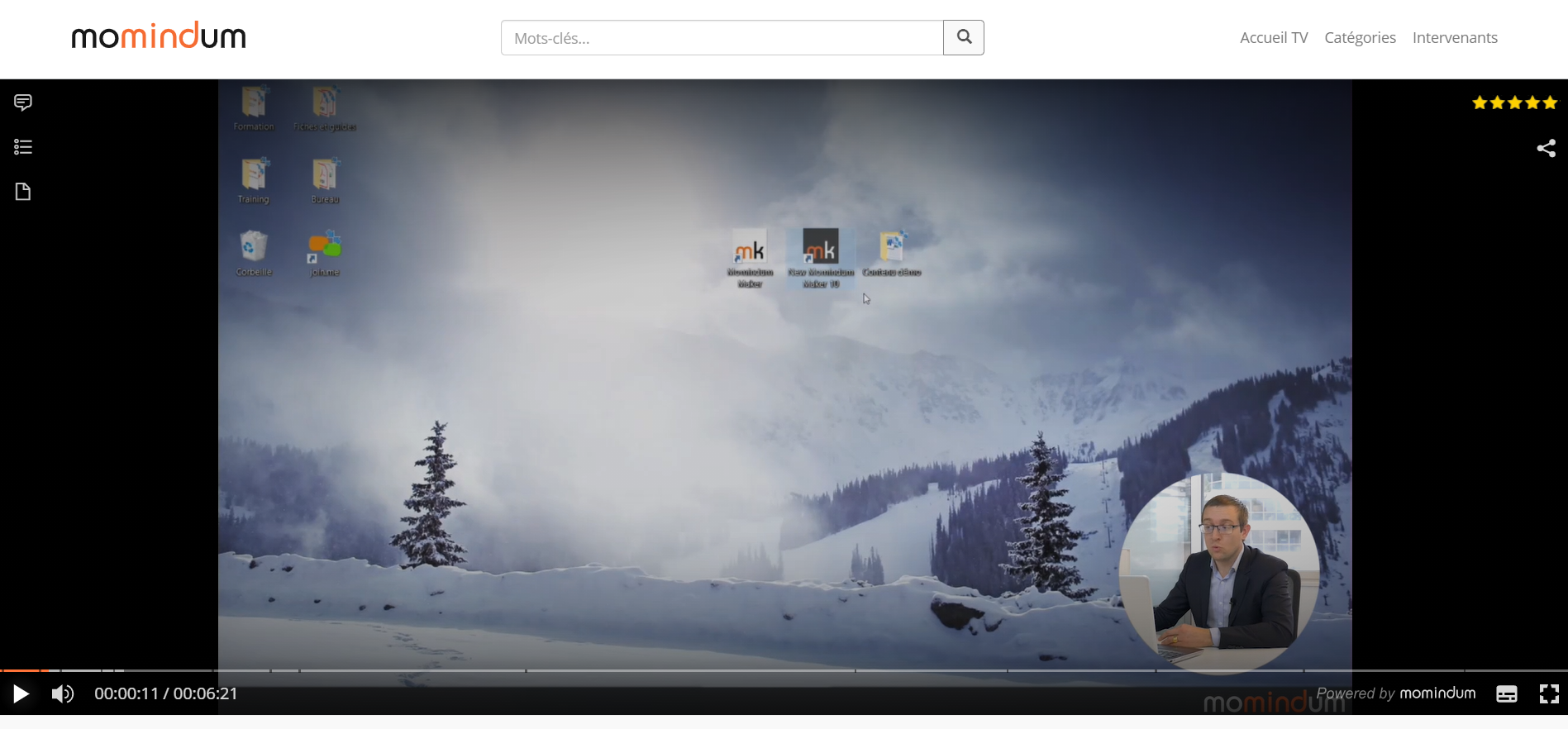
Screencast: Recording your computer screen
Create professional video tutorials in just a few clicks without any technical skills!
Simply record your computer screen, mouse movements, and your voice. Speed up the deployment of your new tools.
Teleprompter and Automatic Video Editing
Whatever type of video you want to create, you can import your video script to benefit from Maker’s teleprompter.

Integrated Teleprompter: Simplified Shooting and Subtitled Videos
Benefit from an integrated teleprompter to streamline your recording. During the capture, all you need to do is read your text. You will save a lot of time during the production of your video.
The teleprompter will be automatically synchronized with your video and will then serve as subtitles for your viewers. Improve accessibility, the impact of your video, and engagement for your audience (deaf and hard of hearing individuals, people who cannot activate the sound…).
Thanks to the teleprompter, you can also automatically enrich your video with chapters, keywords, and web links to enhance the impact of your content.
Automatic Video Editing: Goodbye Post-Production!
Made a mistake during recording? Lack video editing skills? Don’t worry, with Maker, simply pause and restart from the sentence of your choice. Maker automatically handles video editing.

Enrich a video to boost its impact
Maker also allows you to simply enrich all your existing videos (regardless of the tool used for recording: smartphone, professional camera, etc.). Add in a few clicks subtitles, keywords, web links, documents, quiz …

Automatic subtitles from an existing video
If you already have your video file as well as your corresponding PowerPoint presentation, synchronize all the elements automatically and Maker will put automatic subtitles!
If you did not write the associated text, publish your video on Momindum Cloud directly! Thanks to a powerful «speech to text» solution, your video will be automatically subtitled, you will only have to correct possible mistakes from Momindum Cloud.
Automatic enrichment from an existing video
If you already have your video file as well as your corresponding PowerPoint presentation, synchronize all the elements automatically (presentation, chapters, keywords, subtitles)

Enrich your company videos
Maker integrates an authoring software to enrich all your professional videos easily.

With Maker, enhance the impact of your videos and increase audience engagement.
Synchronize your videos with a variety of content:

Documents and Call to Action
By associating documents and links with the video, you’ll strengthen the impact of the content. This allows the listener to engage both auditory and visual memory, making information retention easier. Add and synchronize documents with your video: Slides, PDFs, Videos, Web Links, Flash Animation… You can even create quizzes.
Chapters, Keywords
Increase the impact of your videos and enhance audience engagement by adding chapters and keywords. Listeners can instantly navigate the video presentation through all indexed elements, finding the right information at the right time, saving time in work situations and becoming more efficient.


Subtitles
Transcription is equivalent to subtitles. Deaf and hard of hearing individuals can follow the presentation under optimal conditions. Additionally, subtitles facilitate internationalization for non-native speakers. Translation is possible for subtitles. In addition to adding, modifying, and synchronizing functions, you can import and export subtitle files.
Quiz
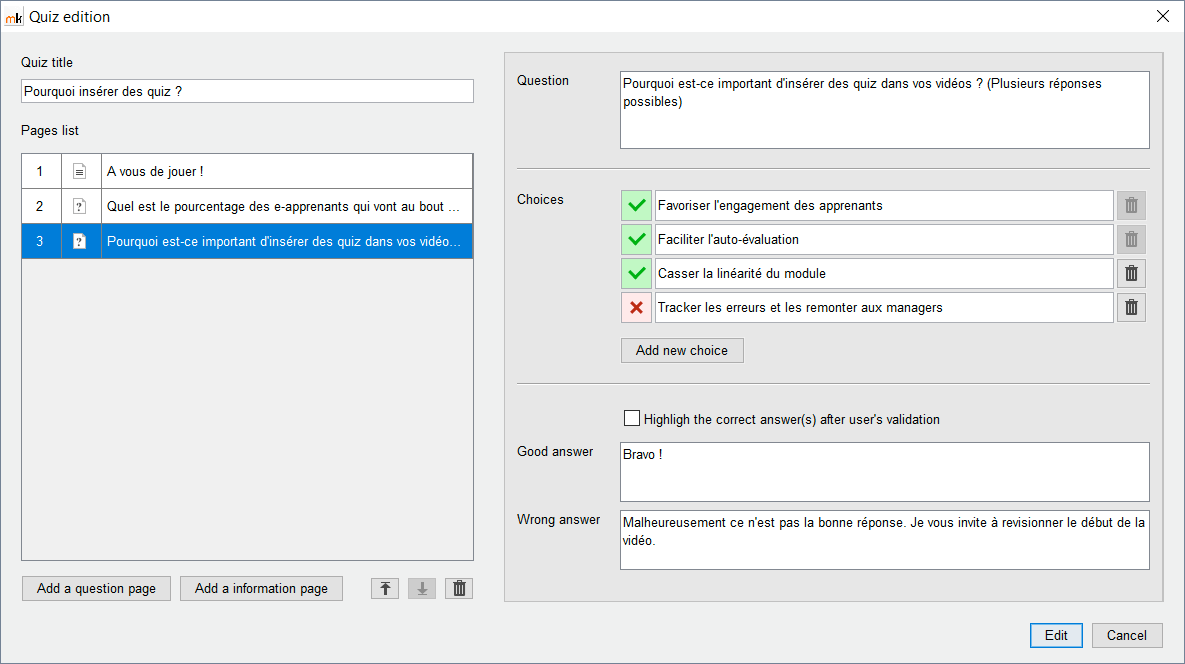
Quizzes enhance interactivity in the module. To integrate one, click on the Quiz tab, add the title and your question, and you’re done! You can add questions with one or more possible answers.


Timeline
Similar to an editing bench, the Timeline represents the duration of the video and allows you to visualize all synchronized elements. Each element indexed to a specific passage of speech is represented by a bullet point. You can quickly move and modify them directly from the timeline.
Enhance the interactivity and effectiveness of your professional videos with quizzes.

Add quizzes to your video to break the linearity of the module and increase audience engagement. Viewers can easily self-assess and are more motivated to watch until the end.
How does it work ?
- Open your project in Maker.
- Pause your video and create a quiz: a title, a description, one or more questions!
- Specify the correct possible answers.
- Reveal the correct answers in case the viewer makes an error.
That’s it! Once your video presentation is finished, publish it on Momindum Cloud and distribute it to your teams.
Learn more about Momindum Cloud
How does Maker work?
Find out more about its features below.
Make live videos with an unlimited number of listeners

To do this, open Momindum Maker from the icon on your desktop. To make a Live, click on “Broadcast a Live”.

Then choose the type of live you want to perform.

Copy / paste the code of the Live generated when creating your event on Momindum Cloud.

Audio / Video Broadcasting
Click on “My camera / microphone”, set your camera and microphone. Then import your script if you want and go!
At the end of your event, an interactive replay is automatically generated so that your listeners can see or re-watch your speech whenever they want.
Video streaming and PowerPoint or Google Slides
Click on “My camera / microphone + PowerPoint”, set your camera and microphone. Then import your PowerPoint and go!

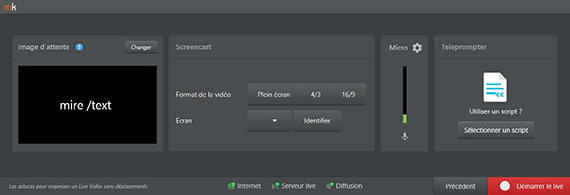
Broadcast of a screencast / Stream a webconference
Click on “My microphone + screen”, set your the area of the screen you want to record as well as the audio source.
Record interactive videos

Click on “Save media”.

Choose the type of video to make
Audio / Video Recording
Click on “My camera / microphone”, set your camera and microphone. Then import your script if you want and go!
Saving your PowerPoint or Google Slides
Click on “My camera / microphone + PowerPoint”, set your camera and your microphone. Then import your PowerPoint and go!
Screencast: Recording your computer screen
To do this, click on “My microphone + screen”, set your area of the screen you want to record as well as your microphone. Then import your script and go!

Enrich a video to boost its impact
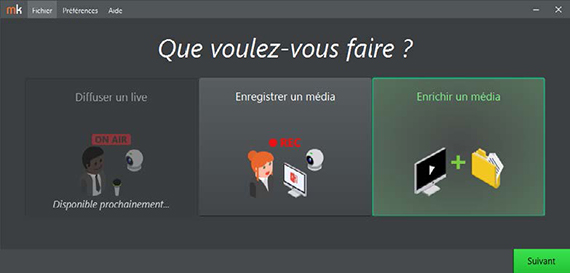
Select "Enrich a media".
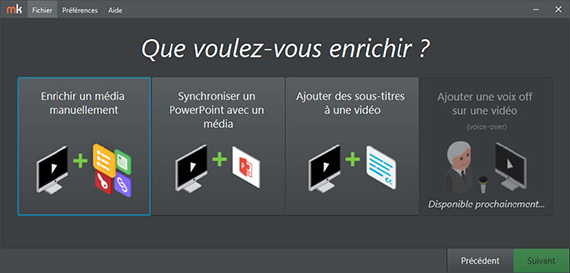
3 options are available to you:
Automatic enrichment of a video with a presentation
To do this, click on “Synchronize a PowerPoint with a media” then import your video file and your presentation. Then all you have to do is listen to your video and scroll through the slides to the rhythm of the video.


Automatic video captioning
Click on “Add subtitles to a video” then import your video file and your script. Then all you have to do is listen to your video and scroll through the script to the rhythm of the video.
Manual enhancement of a video
Click on “Enrich a media manually” then import your video file. You then arrive at the editing interface to enrich your video.
Use Cases

Sales
Boost your salespeople's performance using video!
Training
Improve digital training thanks to video learning.
Internal Comms
Boost your internal communication using video.
Agent Improvement
Improve agent's perfomance with access to your video library.

Get to know Momindum Maker
Ready to take your live broadcast to the next level?
Let us show you how Momindum can increase the participation and success of your live events.
 English
  Français
  日本語
日本語  Español
  Italiano
  Nederlands
  Deutsch